Install FileForge
Your file toolkit, one tap away. Add FileForge to your PC, Mac or phone without an app-store download.
Step 1
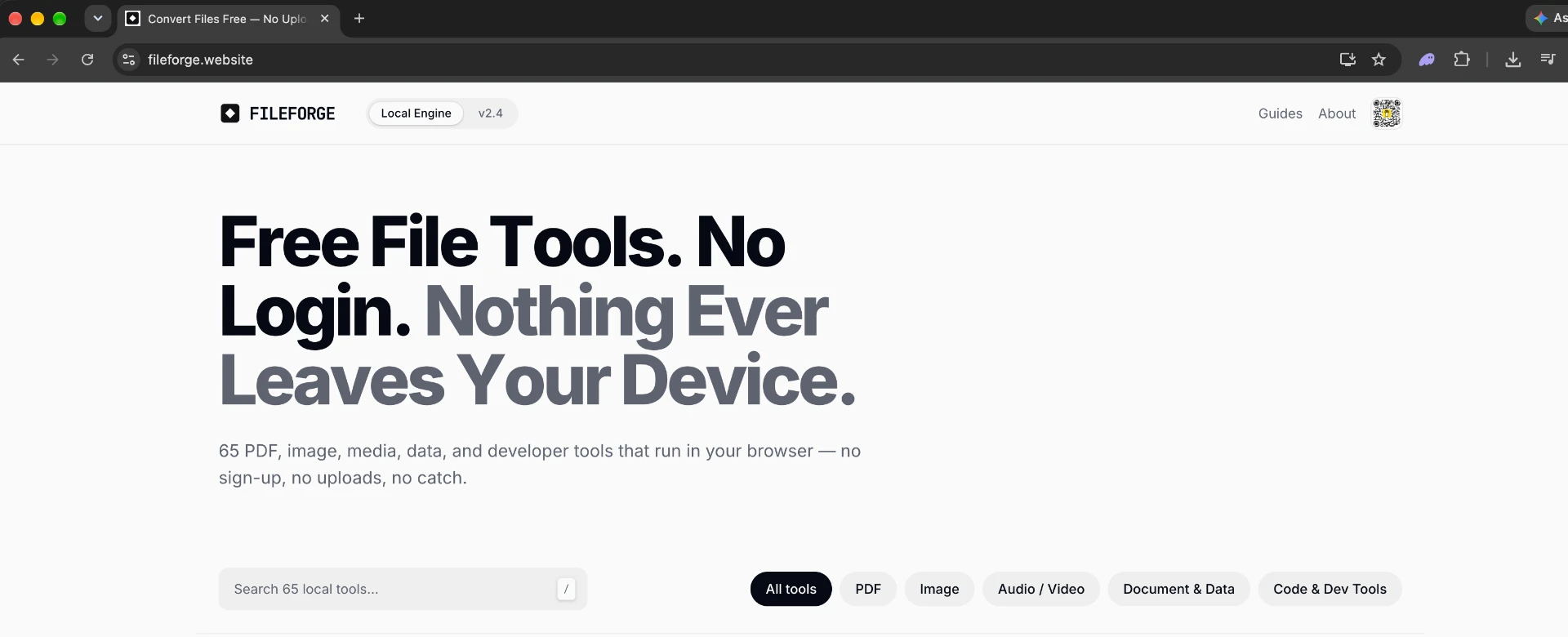
Open FileForge in your browser
Use Chrome or Edge on Windows or Mac. Open the full website, rather than a preview inside another app.
Desktop example Step 2
Choose the browser’s install option
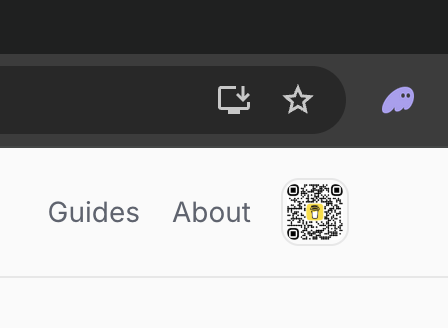
Click the monitor-and-arrow icon next to the address bar, then confirm Install. If it is missing, check the browser menu for Install FileForge, Install page as app, or Apps → Install this site as an app. The wording varies by browser.
Desktop example Step 3
Open it from your apps
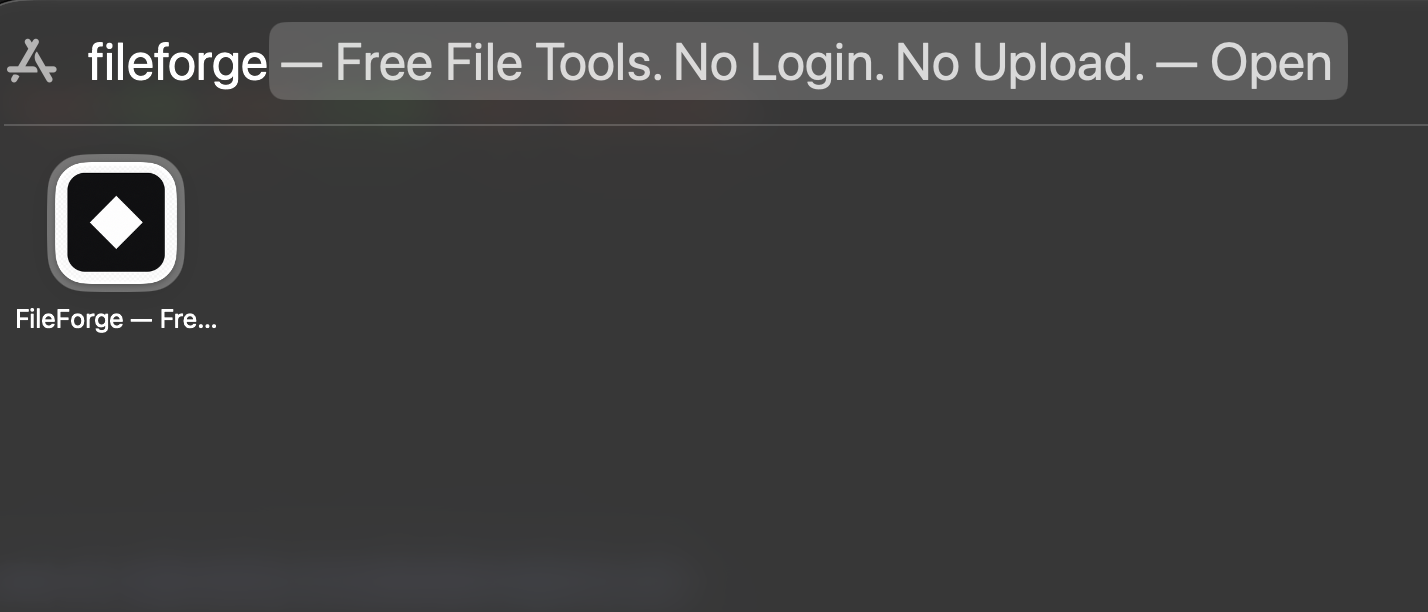
Launch FileForge from your app launcher or desktop shortcut. You can pin it to your taskbar or Dock. On supported macOS versions, Safari also offers File → Add to Dock.
Desktop example
Before you install
Installation gives you an app icon and, where supported, a separate window. It does not store your selected files or guarantee offline access. First visits and some tools need a connection to load; processing still happens on your device. Browser menus change, so your screen may look different from these examples.
To remove FileForge, use your device’s normal app or home-screen removal controls. Removing the shortcut does not delete copies you already downloaded.